
A normal FAQ only answers the questions you thought to write. Someone asks a ninth question and there's nowhere for it to go — they leave, or they email support.
Infinite FAQ fixes that: it's a normal-looking FAQ accordion, except the last row is a live input. If a visitor's question isn't listed, they type it and get a real answer pulled from your own website — right there, no chat window.
Here's the whole setup, five steps, no code required.
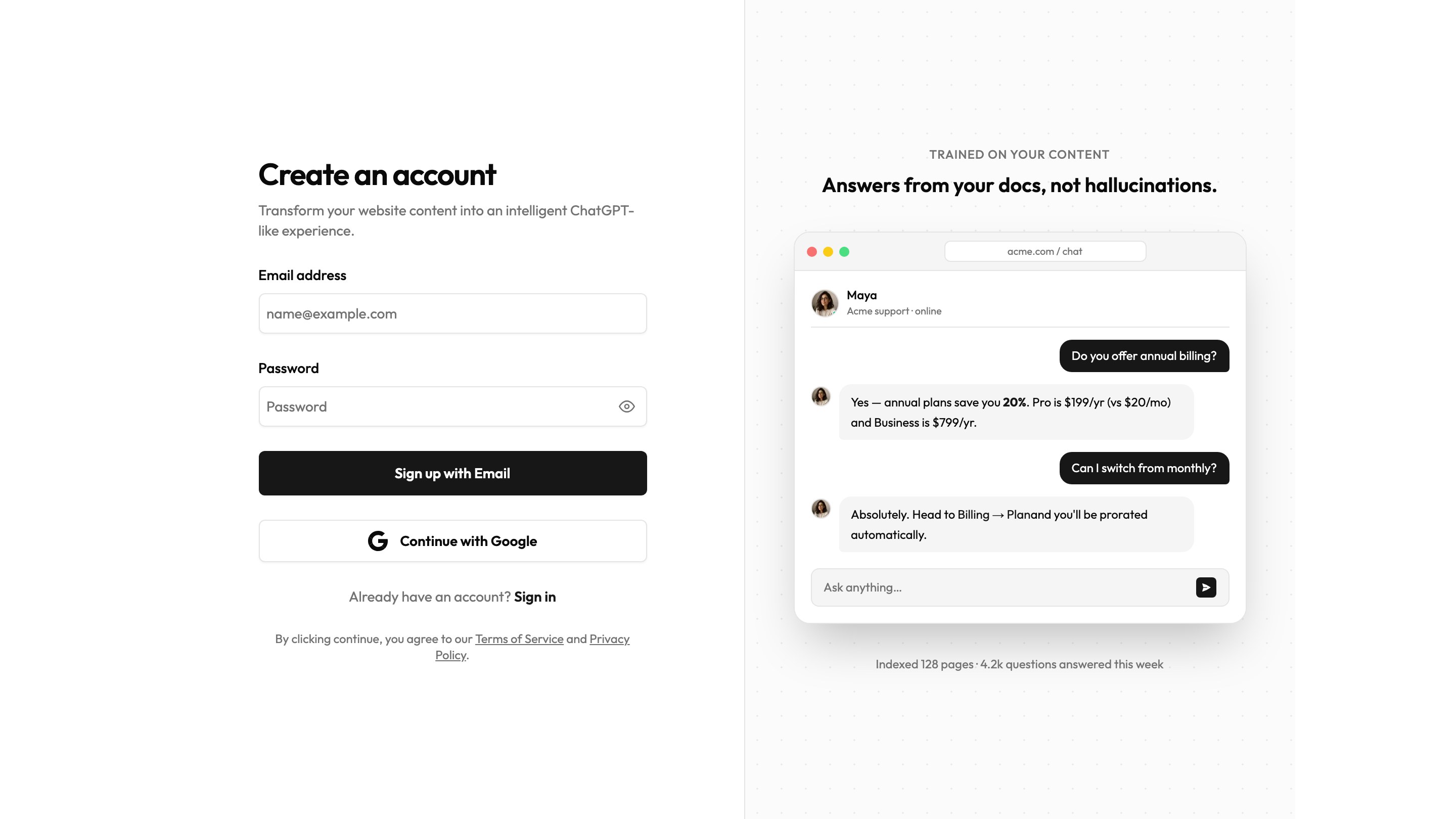
1. Sign up
Head to magicchat.ai/signup and create a free account with your email or Google.
2. Create your bot with your website's URL
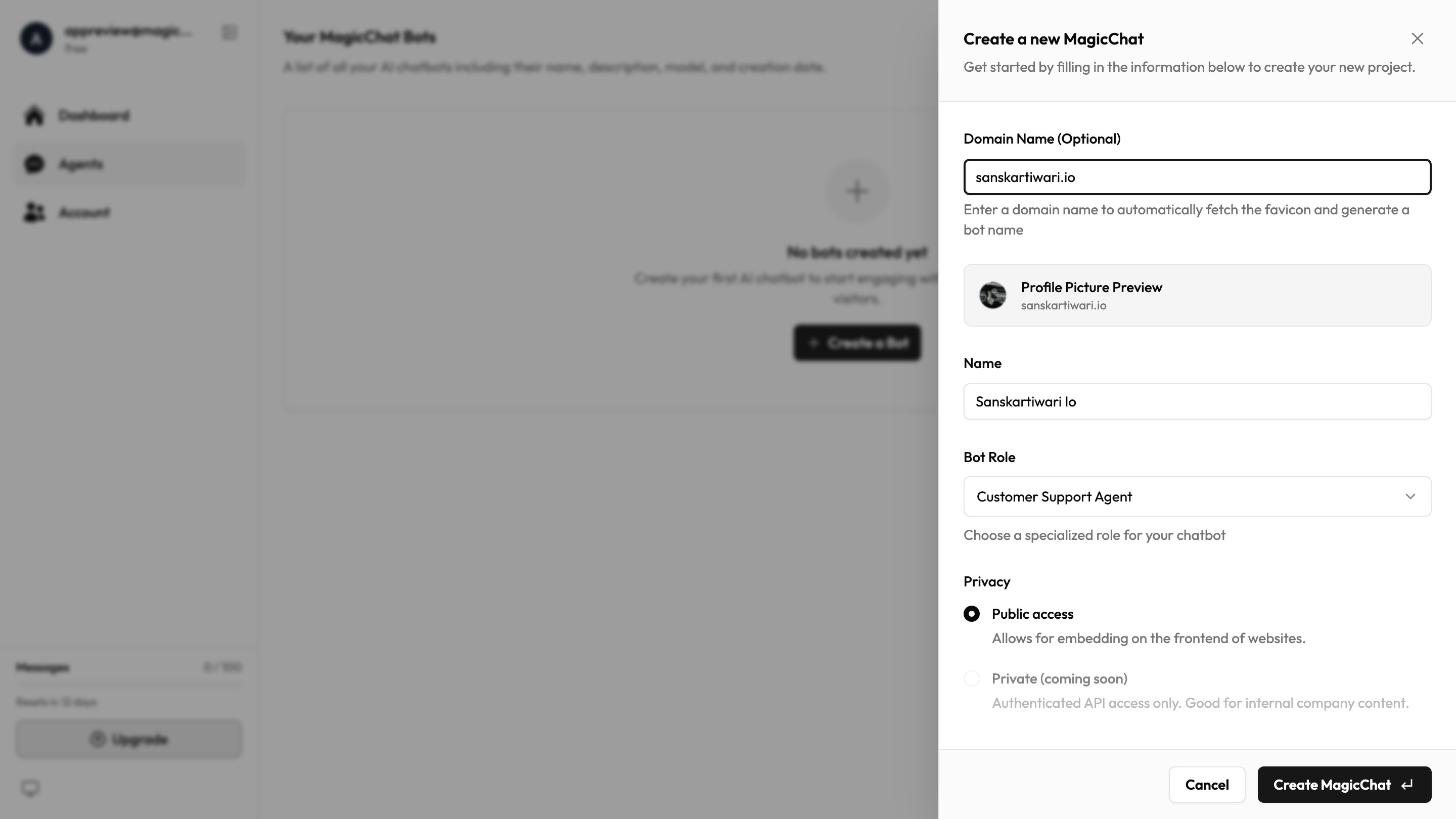
Click Add Bot, drop in your website's domain, and MagicChat pulls your logo and name automatically. Give it a name if you want, then create it.
3. Let it learn your site
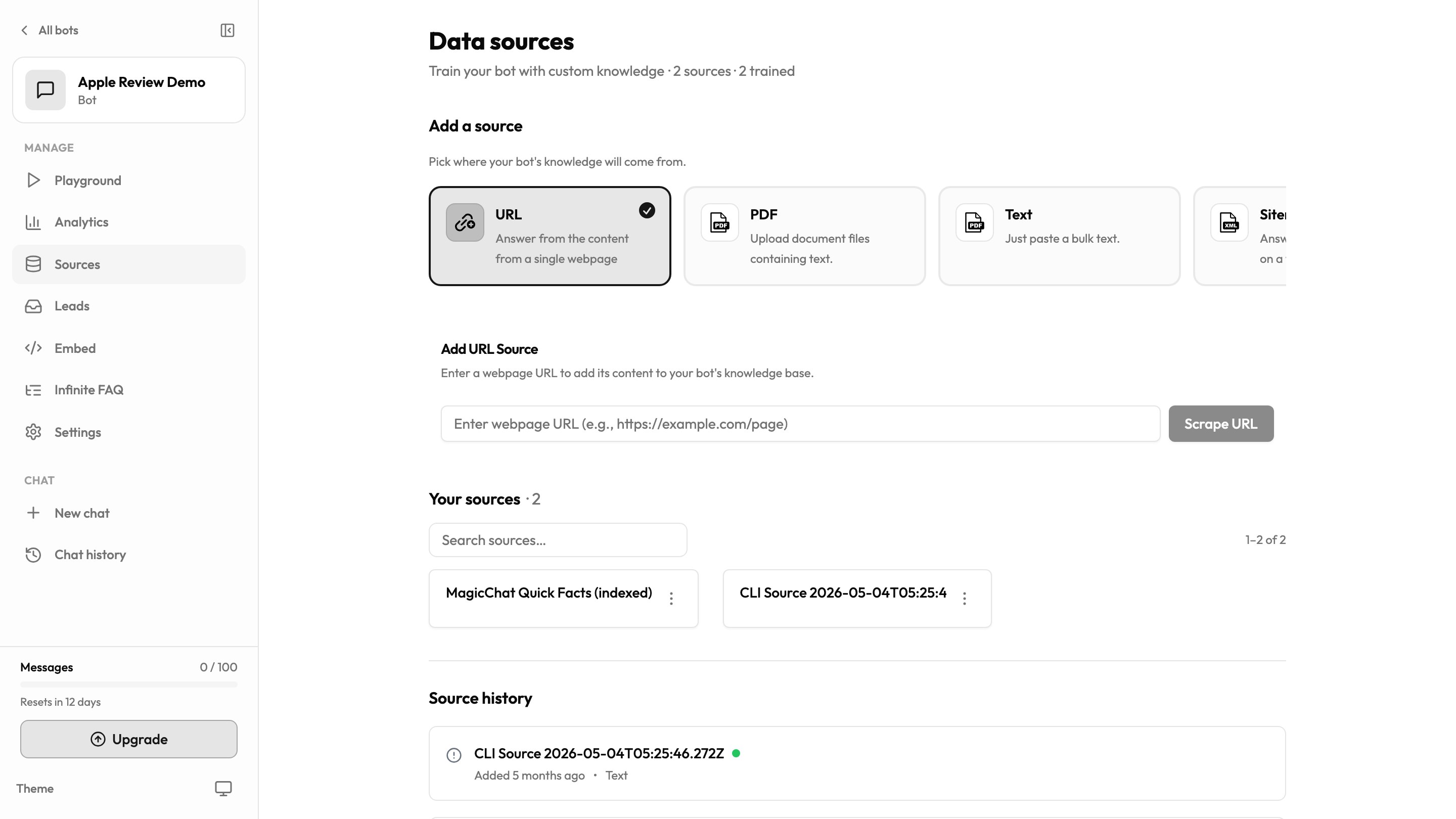
MagicChat crawls your pages in the background and indexes them — this is what your FAQ will answer from. You can close the tab; it keeps going.
4. Generate your FAQ
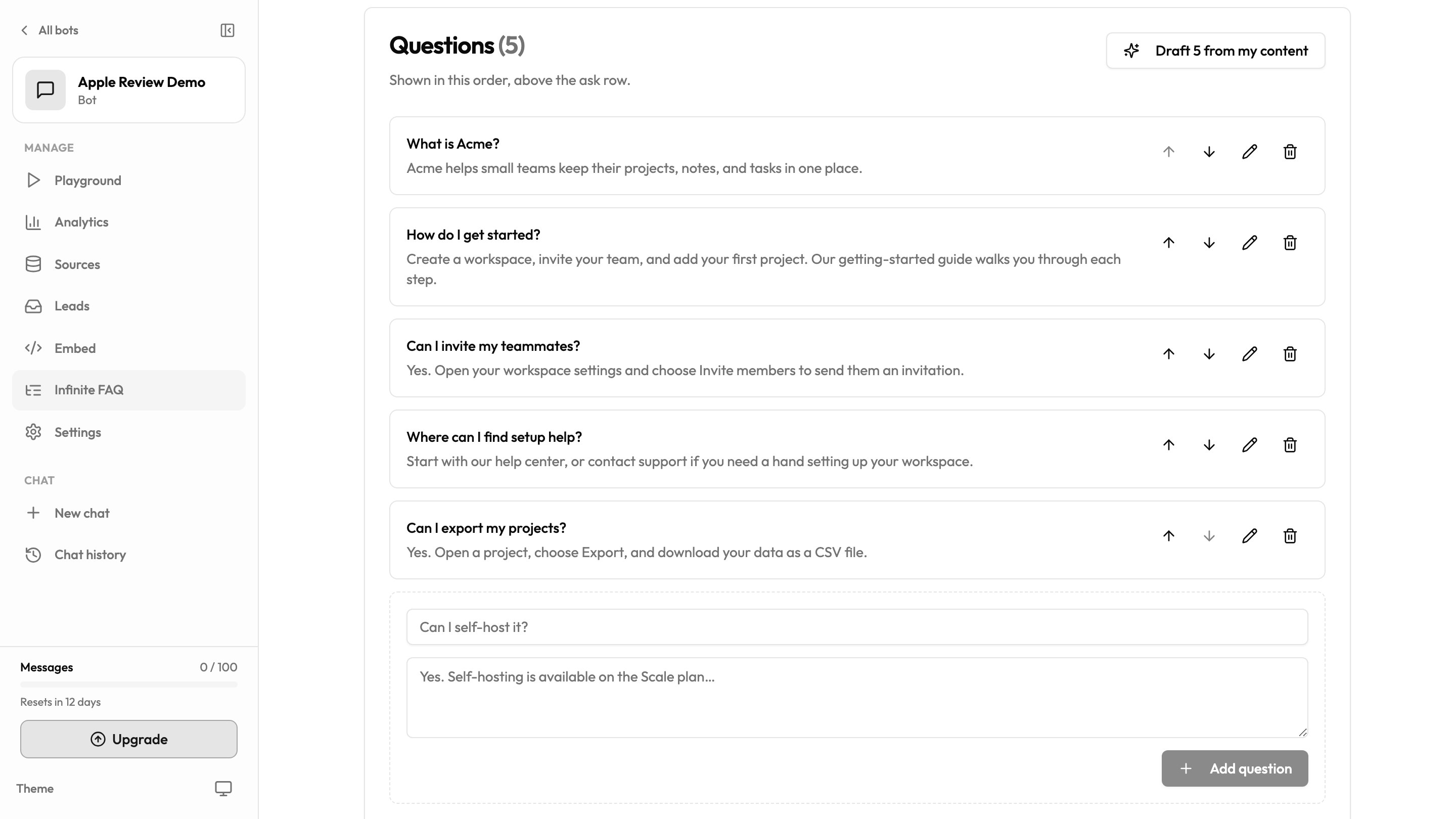
Open Infinite FAQ in the sidebar, pick the page you want it on, and click Draft from my content. MagicChat writes a starter set of questions and answers straight from what it just learned. Edit anything that needs a tweak, then switch it to Live.
5. Copy the code, paste it on your site
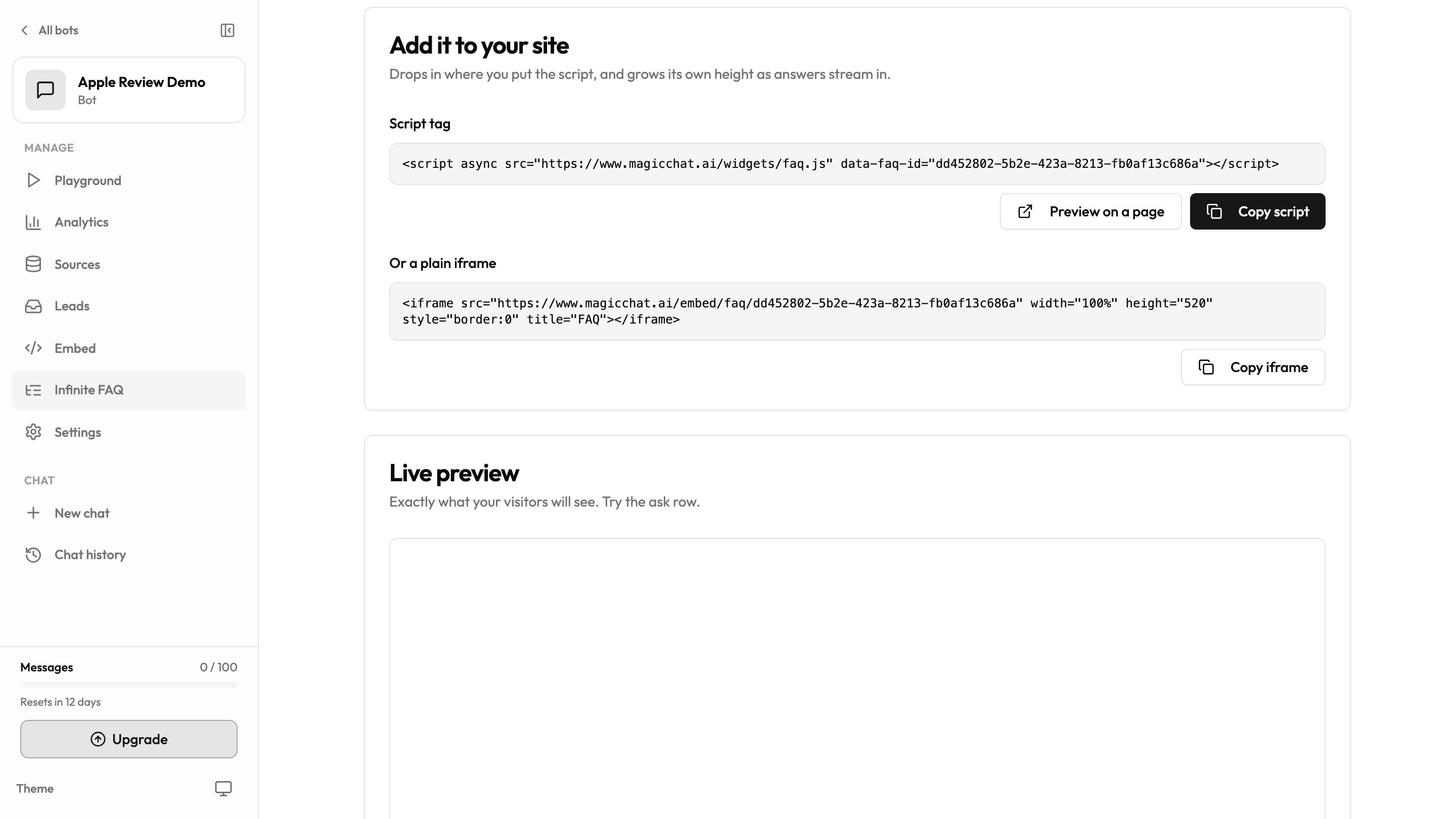
Scroll to Add it to your site and copy the iframe code.
<iframe
  src="https://www.magicchat.ai/embed/faq/YOUR_FAQ_ID"
  width="100%"
  height="520"
  style="border:0"
  title="FAQ"
></iframe>
Paste it wherever you want the FAQ to show up — under your pricing table, on a support page, anywhere. That's it.
That's it
Here's what visitors see on your site: your drafted questions in a normal accordion, plus the Ask anything else row at the bottom. The "Can I export a project as CSV?" entry wasn't written by anyone — a visitor typed it and got an answer on the spot.
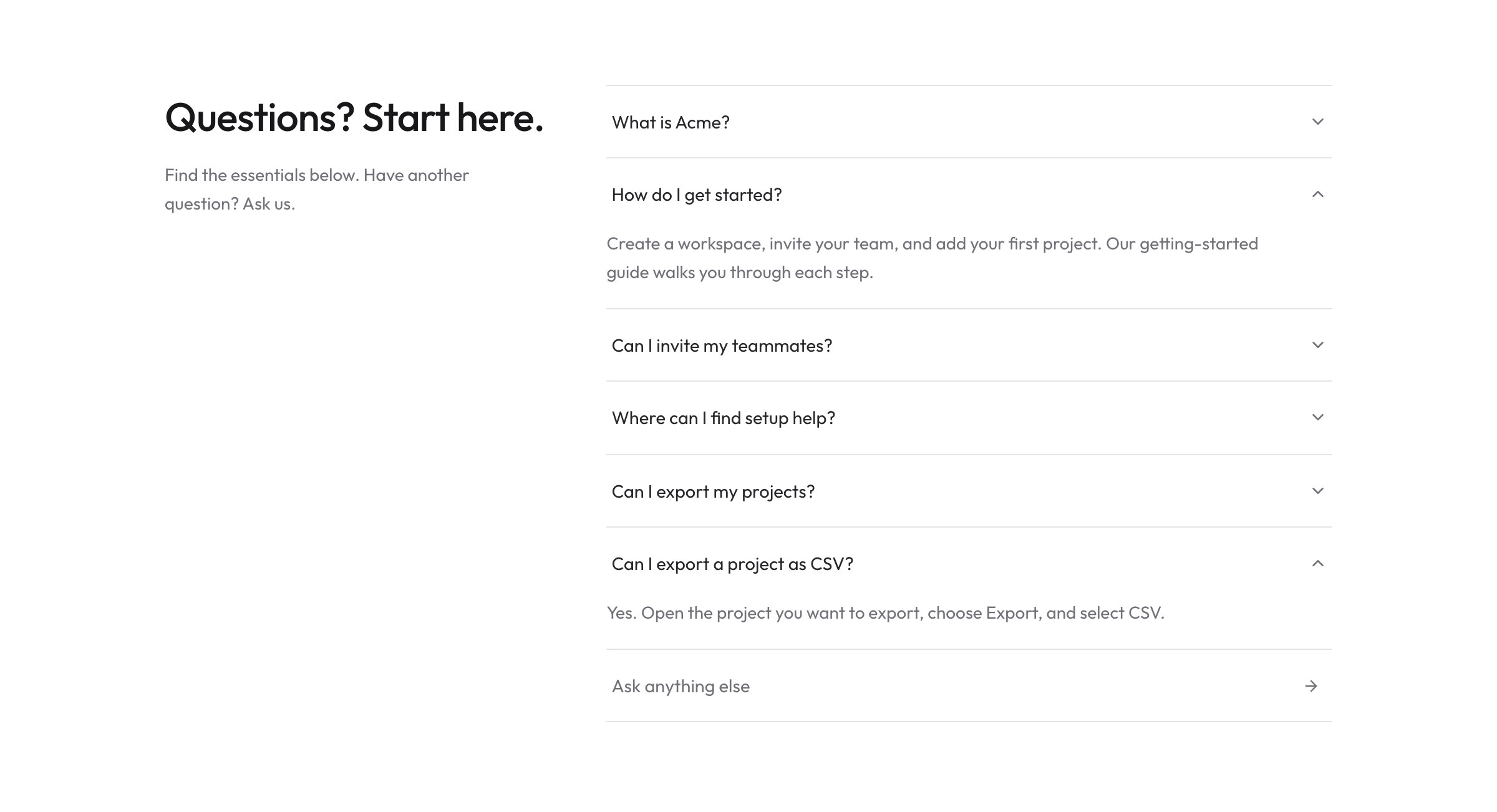
Your FAQ is live, and every question a visitor types into it gets logged in your dashboard — so a week from now you'll know exactly what people actually want to know, not just what you guessed.
Create your first bot free and have an FAQ on your site in a few minutes.